Covered in this video
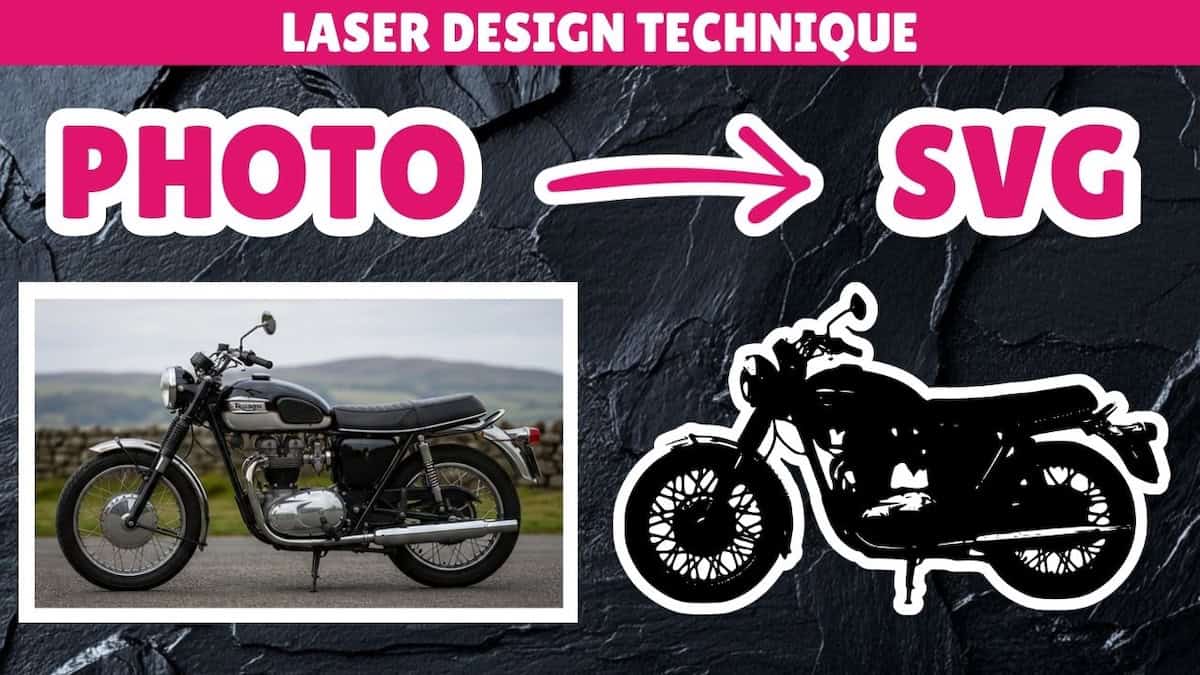
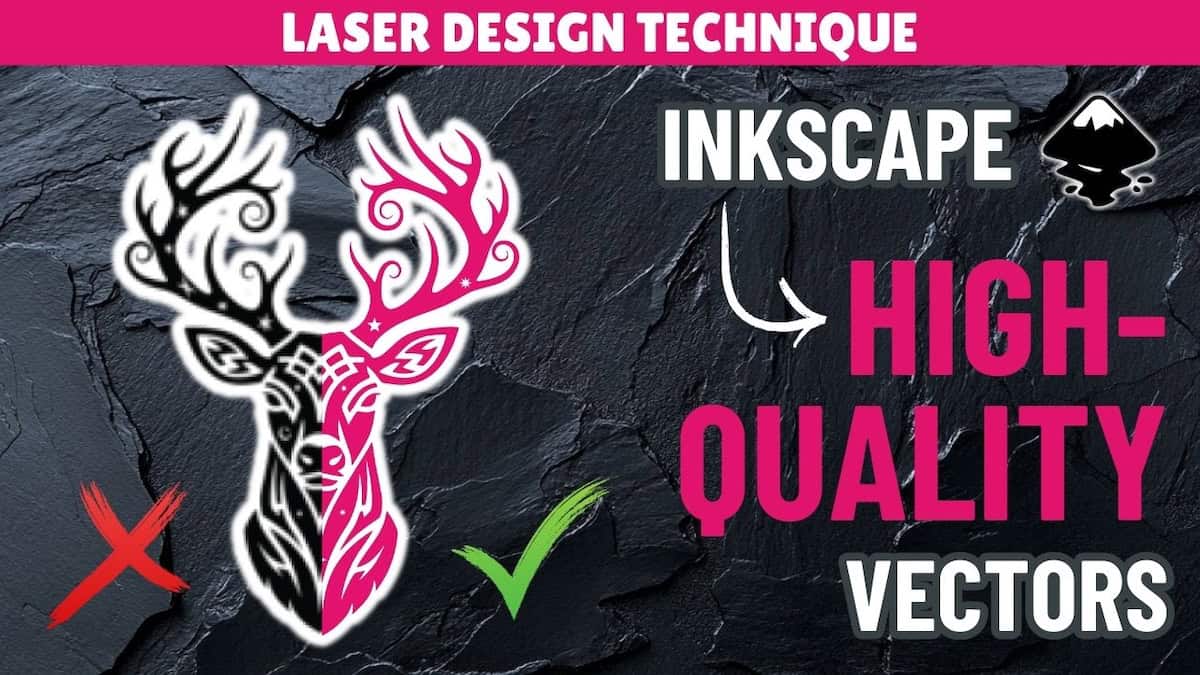
If Trace Bitmap didn’t work well at converting your raster image to vector format, you may need to manually rebuild it (or parts of it) as an SVG. In this video, you’ll learn how to convert your PNG to SVG in Inkscape using shapes and fonts, including:
- When it makes sense to use manual methods to rebuild images instead of using automatic tools (Trace Bitmap, Vector Witch, AImake, etc.)
- How to do it using shapes and fonts
- How to save your SVG so it works in your laser cutting software
Video outline
- Intro
- Using simple shapes
- Building custom shapes: Shape builder & path operations
- Replace text shapes with editable fonts
- Save your SVG: Editable version & laser-ready version
- Bringing it into your laser software
Resources referenced
- Inkscape free download page
- Video on how to recreate images as vectors using drawing tools in Inkscape: Coming soon!
- Video on how to convert images to vectors using Trace Bitmap in Inkscape
- Video on 3 cases where Inkscape’s Trace Bitmap SVG converter isn’t good enough
- Video explaining Inkscape path operations by Sweater Cat Designs
- Video on converting line art to SVG using Inkscape’s Trace Bitmap tool
- Playlist for all image to vector for laser cutting videos
Other learning resources